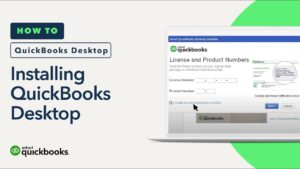
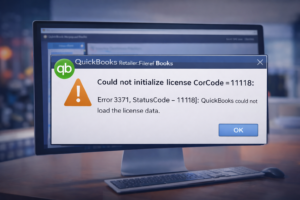
You just installed QuickBooks Desktop and it refuses to open. You double-click the icon, nothing happens — or it flashes briefly and disappears. This is incredibly frustrating, especially when you have work to do.
Do not worry. This guide covers every reason why QuickBooks won’t open after installation and gives you step-by-step fixes for each one.
Why QuickBooks Won’t Open After Installation
- Installation was incomplete or corrupted
- Microsoft .NET Framework is missing or damaged
- QuickBooks is already running in the background
- Windows user account does not have admin permissions
- Antivirus is blocking QuickBooks from launching
- Your computer does not meet minimum system requirements
- The QuickBooks company file is damaged
Fix 1 — End All QuickBooks Processes in Task Manager
QuickBooks might already be running in the background without showing on screen:
- Press Ctrl + Shift + Esc to open Task Manager
- Look for any process called QBW32.exe, QBDBMgr.exe, or QuickBooks
- Right-click each one and select End Task
- Try opening QuickBooks again ✅
Fix 2 — Run QuickBooks as Administrator
- Right-click the QuickBooks icon
- Select Run as administrator
- Click Yes on the permission prompt
- Check if QuickBooks opens ✅
If it opens this way, you can make this permanent by going to Properties > Compatibility and checking “Run this program as an administrator.”
Fix 3 — Repair QuickBooks Installation
- Press Windows + R, type appwiz.cpl, press Enter
- Find QuickBooks in the list
- Click it and select Repair or Change
- Follow the repair wizard
- Restart your computer and try again ✅
Fix 4 — Reinstall Microsoft .NET Framework
QuickBooks requires .NET Framework to run. A corrupted .NET installation is a very common cause of QuickBooks not opening:
- Open Control Panel
- Go to Programs and Features
- Click Turn Windows features on or off
- Make sure .NET Framework 3.5 and .NET Framework 4.8 are both checked
- Click OK and restart your computer ✅
Fix 5 — Temporarily Disable Antivirus
- Temporarily turn off your antivirus software
- Try to open QuickBooks
- If it opens, add QuickBooks to your antivirus exceptions list
- Turn antivirus back on ✅
Fix 6 — Use QuickBooks Tool Hub
- Download QuickBooks Tool Hub from the Intuit website
- Open the Tool Hub
- Click Program Problems
- Click Quick Fix my Program
- Wait for it to finish, then open QuickBooks ✅
Fix 7 — Clean Reinstall QuickBooks
If all else fails, a fresh installation usually solves everything:
- Uninstall QuickBooks from Control Panel
- Download and run the QuickBooks Clean Install Tool
- Reinstall QuickBooks fresh from your installer
- Enter your license key and register ✅
Get a New QuickBooks License at the Best Price
If you need a new QuickBooks Desktop license key, get one instantly from www.keys2024.com/. Genuine lifetime licenses delivered to your email in 3-5 minutes — up to 86% cheaper than buying directly from Intuit.
Conclusion
QuickBooks not opening after installation is almost always fixable. Start with Fix 1 (end background processes) and Fix 2 (run as administrator) — these solve the issue 70% of the time. If those don’t work, the Tool Hub in Fix 6 is your best next step.