If you just opened QuickBooks and got hit with Error 3371, Status Code 11118, you are not alone. This is one of the most common QuickBooks errors reported by small business owners across the United States. The good news? It is completely fixable in just a few minutes.
In this guide, we will walk you through exactly what causes this error and every fix you can try right now.
What is QuickBooks Error 3371 Status Code 11118?
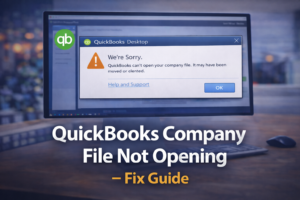
This error appears when QuickBooks cannot load the license data. It usually shows a message like:
“Could not initialize license properties. [Error 3371, Status Code -11118] QuickBooks could not load the license data. This may be caused by missing or damaged files.”
QuickBooks stores your license information in encrypted files on your computer. When those files get corrupted, moved, or damaged — this error appears and blocks you from opening the software.
What Causes QuickBooks Error 3371?
- The EntitlementDataStore.ecml file is corrupted or missing
- Windows registry entries are damaged
- QuickBooks was not installed correctly
- A Windows update changed system files
- Antivirus software deleted QuickBooks license files
- The hard drive has bad sectors affecting QuickBooks files
Fix 1 — Delete the EntitlementDataStore.ecml File (Most Common Fix)
This is the most effective fix for Error 3371. Here is how to do it:
- Close QuickBooks completely
- Press Windows + R on your keyboard
- Type this path and press Enter:
C:\ProgramData\Intuit\Entitlement Client\v8 - Find the file called EntitlementDataStore.ecml
- Right-click it and select Delete
- Open QuickBooks again
- You will be asked to register your product — enter your license number
- QuickBooks will create a new clean file and the error will be gone ✅
Note: The ProgramData folder is hidden by default. If you cannot see it, open File Explorer, click View, then check the box for Hidden Items.
Fix 2 — Run QuickBooks as Administrator
- Close QuickBooks
- Find the QuickBooks icon on your desktop
- Right-click it and select Run as administrator
- Click Yes when Windows asks for permission
- See if the error is gone ✅
Fix 3 — Use QuickBooks Install Diagnostic Tool
- Download the QuickBooks Tool Hub from the Intuit website
- Install and open the Tool Hub
- Click Installation Issues
- Click QuickBooks Install Diagnostic Tool
- Wait for the scan to complete (it can take up to 20 minutes)
- Restart your computer and open QuickBooks ✅
Fix 4 — Reinstall QuickBooks Using Clean Install
If nothing else works, a clean reinstall almost always solves Error 3371:
- Uninstall QuickBooks from Control Panel
- Download the QuickBooks Clean Install Tool from Tool Hub
- Run the clean install tool to remove all leftover files
- Reinstall QuickBooks fresh
- Enter your license key when prompted ✅
Fix 5 — Check Your Antivirus Settings
Some antivirus programs incorrectly flag QuickBooks license files as threats. Temporarily disable your antivirus, open QuickBooks, and see if the error appears. If it does not, add QuickBooks to your antivirus whitelist.
Need a New QuickBooks License Key?
If you lost your original license key or need a new installation, you can get a genuine QuickBooks Desktop lifetime license key delivered instantly to your email at www.keys2024.com/. Our keys are 100% genuine and activate without any issues — saving you up to 86% off the retail price.
Conclusion
QuickBooks Error 3371 Status Code 11118 looks scary but it is usually fixed in under 5 minutes by deleting the EntitlementDataStore.ecml file. Try Fix 1 first — it works for 90% of users. If that does not work, go through each fix in order until the error is resolved.
If you are still having trouble, contact us at Keys2024 Support and we will help you get QuickBooks running again.