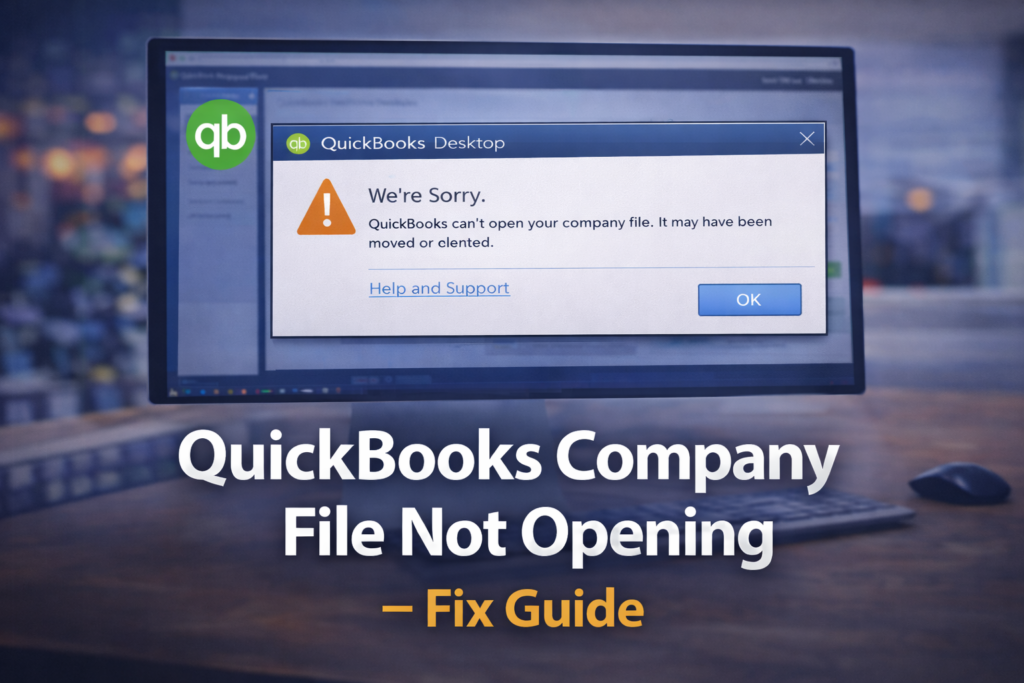
Your company file holds all your business data — invoices, payroll, expenses, reports. When it refuses to open, it can feel like a disaster. But in most cases, your data is safe and the problem is fixable. This guide covers every reason why your QuickBooks company file won’t open and how to fix it.
Why Is Your QuickBooks Company File Not Opening?
- The company file (.QBW) is corrupted or damaged
- The file is stored on a network location that is no longer accessible
- QuickBooks version is newer than the file was created in
- The file is locked because another user has it open
- Windows permissions are blocking access to the file
- The .ND or .TLG files associated with the company file are damaged
- Not enough disk space to open the file
Fix 1 — Use QuickBooks File Doctor
This is always your first step for any company file issue:
- Download and open QuickBooks Tool Hub
- Click Company File Issues
- Click Run QuickBooks File Doctor
- Click the dropdown and select your company file
(If you don’t see it, click Browse and find the .QBW file) - Select Check your file and network
- Enter your QuickBooks admin password
- Click Next and wait — this can take up to 5 minutes
- Open QuickBooks and try your file again ✅
Fix 2 — Delete the .ND and .TLG Files
These are configuration files that QuickBooks creates automatically. When they get corrupted, they prevent your company file from opening:
- Open File Explorer and navigate to your company file location
- Look for files with the same name as your company file but with extensions .ND and .TLG
- Right-click each one and select Delete
- Open QuickBooks — it will rebuild these files automatically ✅
Important: Only delete the .ND and .TLG files, NOT the .QBW file (that is your actual data).
Fix 3 — Copy the Company File to Your Desktop
Network and permission issues can prevent file access:
- Find your company file (.QBW)
- Copy it to your Desktop
- Open QuickBooks and go to File → Open or Restore Company
- Select the copy on your Desktop
- If it opens successfully, the original location had a permissions issue ✅
Fix 4 — Check Windows File Permissions
- Right-click the company file folder
- Click Properties → Security
- Make sure your Windows user account has Full Control
- If not, click Edit and grant Full Control
- Apply and try opening the file again ✅
Fix 5 — Restore a Backup
If the company file is severely corrupted and File Doctor cannot fix it, restore from a backup:
- Open QuickBooks
- Go to File → Open or Restore Company
- Select Restore a backup copy
- Click Next and follow the wizard
- Select your most recent .QBB backup file ✅
This is why regular backups are so important! Always keep backups of your QuickBooks company file on an external drive or cloud storage.
Fix 6 — Upgrade QuickBooks to Match the File Version
If someone created the company file with a newer version of QuickBooks than you have installed, it will not open. You need to either upgrade QuickBooks or have the person who created it save it in a compatible format.
Prevent This From Happening Again
- Always back up your company file daily (File → Back Up Company)
- Store backups in multiple locations (local + cloud)
- Keep QuickBooks updated
- Never store your company file on a USB drive or unreliable network
Get a Fresh QuickBooks License
Need to reinstall QuickBooks or upgrade to the latest version? Get a genuine QuickBooks Desktop lifetime license at www.keys2024.com/ — instant delivery, 100% genuine, up to 86% off retail.
Conclusion
When your QuickBooks company file won’t open, stay calm — your data is almost certainly safe. Start with Fix 1 (QuickBooks File Doctor) and Fix 2 (delete .ND and .TLG files). These two steps resolve the vast majority of company file issues. If the file is severely corrupted, restoring from a backup is your safest option.