QuickBooks Desktop is one of the most popular accounting software solutions used by small businesses, accountants, and freelancers. It helps manage finances, track expenses, create invoices, and generate financial reports.
If you have recently purchased QuickBooks Desktop, installing it correctly is the first step to getting your accounting system up and running. In this guide, we will walk you through the complete process of installing QuickBooks Desktop step by step.
System Requirements for QuickBooks Desktop
Before installing QuickBooks Desktop, make sure your computer meets the basic system requirements.
Typical requirements include:
- Windows 10 or Windows 11
- At least 4GB RAM (8GB recommended)
- 2.5 GB free disk space
- Stable internet connection for activation and updates
Meeting these requirements ensures QuickBooks runs smoothly without performance issues.
Step 1: Download QuickBooks Desktop
The first step is to download the QuickBooks Desktop installation file.
You can download it from the official QuickBooks website or from a trusted source where you purchased the software license.
After downloading, save the installation file on your computer where you can easily access it.
Step 2: Open the Installation File
Locate the downloaded QuickBooks installation file and double-click it.
This will start the installation wizard that will guide you through the setup process.
If Windows asks for permission, click Yes to allow the installation.
Step 3: Accept the License Agreement
During the installation process, QuickBooks will show you the license agreement.
Read the agreement and select I accept the terms in the license agreement.
Then click Next to continue.
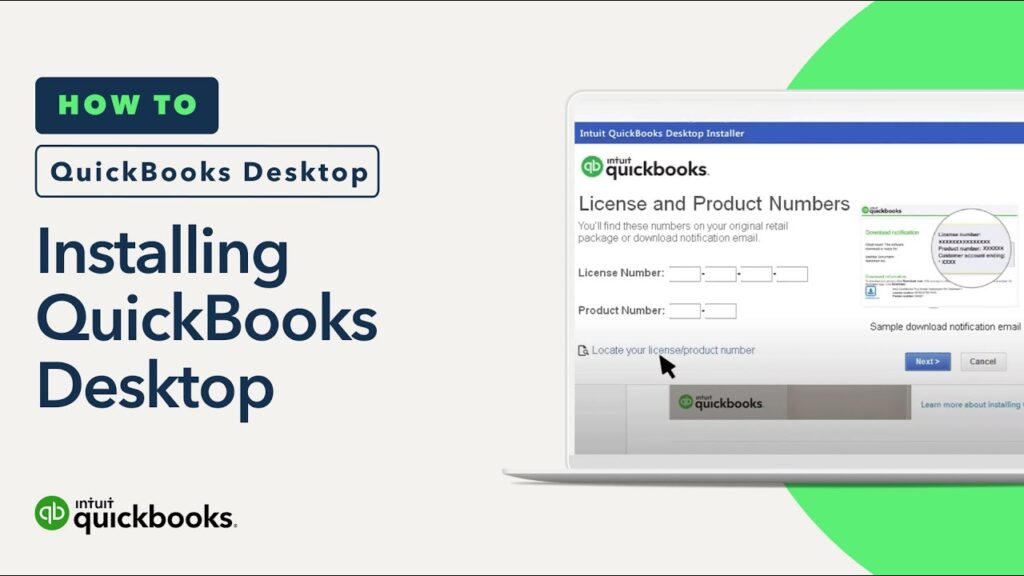
Step 4: Enter Your License and Product Number
This step is important.
You will be asked to enter your:
- QuickBooks License Number
- Product Number
These numbers are required to activate your QuickBooks software.
Make sure you enter them correctly before proceeding.
Step 5: Choose Installation Type
QuickBooks usually gives you two installation options:
Express Install
This option installs QuickBooks with recommended settings. It is best for most users.
Custom Install
This option allows advanced users to customize the installation location and settings.
For beginners, the Express Install option is recommended.
Step 6: Complete the Installation
Once the installation settings are confirmed, click Install.
The installation process may take a few minutes depending on your computer speed.
After installation is complete, click Finish.
Step 7: Activate QuickBooks Desktop
After installing QuickBooks Desktop, you must activate the software using a valid license.
Activation ensures that your QuickBooks software works properly and receives updates.
If you don’t have a license yet, you can purchase one from our store below.
👉 Buy Genuine QuickBooks License : https://www.keys2024.com/product/quick-books-desktop-pro-2024-3-users-lifetime/
Final Thoughts
Installing QuickBooks Desktop is a simple process if you follow the steps carefully. Once installed and activated, you can start managing your business finances, tracking expenses, and generating financial reports easily.
QuickBooks remains one of the most reliable accounting solutions for small businesses worldwide.